
From notes to
something you remember.
Install FirstRecall, generate study material from a Markdown note, and try recalling an answer before revealing the source.
Install FirstRecall
Free and open source · Obsidian Desktop 1.11.4+
Cloud providers may charge for usage. The included hosted trial has usage limits.
You need Obsidian Desktop 1.11.4 or later. FirstRecall is a desktop plugin; these instructions do not apply to Obsidian mobile.
Install from Obsidian Community Plugins
FirstRecall is available in Obsidian Community Plugins. Open the FirstRecall community page and choose Add to Obsidian, or install from within Obsidian:
- Open Settings → Community plugins in Obsidian and enable community plugins if needed.
- Choose Browse and search for FirstRecall.
- Open FirstRecall, choose Install, then Enable.
- Open Settings → FirstRecall → AI model to choose a provider.
Use Settings → Community plugins → Check for updates to keep FirstRecall updated. See the plugin README for more installation help.
Your first study session
- In Settings → FirstRecall → AI model, choose a provider. None is selected by default. Complete its setup and use Test connection where offered.
- Start with a Markdown note containing material you want to remember. Headings help organize section study cards, but notes without headings are also supported.
- Open the FirstRecall menu in the note header and select Generate study material for this note. The command palette offers the same generation action.
- Read the Note Brief and check the section study cards against your source. Each section card contains a summary, recall question, and key terms. The Note Brief provides an overview and prompts for the core idea, what to review first, and a self-test.
- Choose Study this note in the FirstRecall menu. Attempt the answer from memory, then reveal the section body to compare. Choose Exit Study when finished.
See the same note in Cornell and Inline layouts, or jump to the Study Mode example to see how the source is hidden.
How should I format my note?
Headings are optional. To organize sections, use Markdown headings such as ## Event loop followed by studyable text. Heading levels 1–6 are supported. Heading-like text inside a fenced code block is ignored.
Generation reads text, not image pixels. Meaningful alt text or written captions can provide usable source material; an image filename or an image-only section cannot. If a section has too little information for a faithful question, add explanatory text and generate again.
Choose an AI provider
Go to Settings → FirstRecall → AI model. Select a connection type, then its provider. FirstRecall starts with no provider selected. This choice determines where generation runs and whose usage limits and data policies apply.
Simonides hosted AI trial
Choose Simonides hosted AI trial to use the included model without entering an API key. There is no model picker. Usage and service capacity limits apply, so a request may be unavailable. The trial processes content remotely.
The Simonides hosted trial processes the note content needed to generate your study material. It also processes installation identifiers and operational metadata for usage limits, abuse prevention, and service reliability. Read the Simonides privacy policy for processing and retention details.
View connection types and trial setup
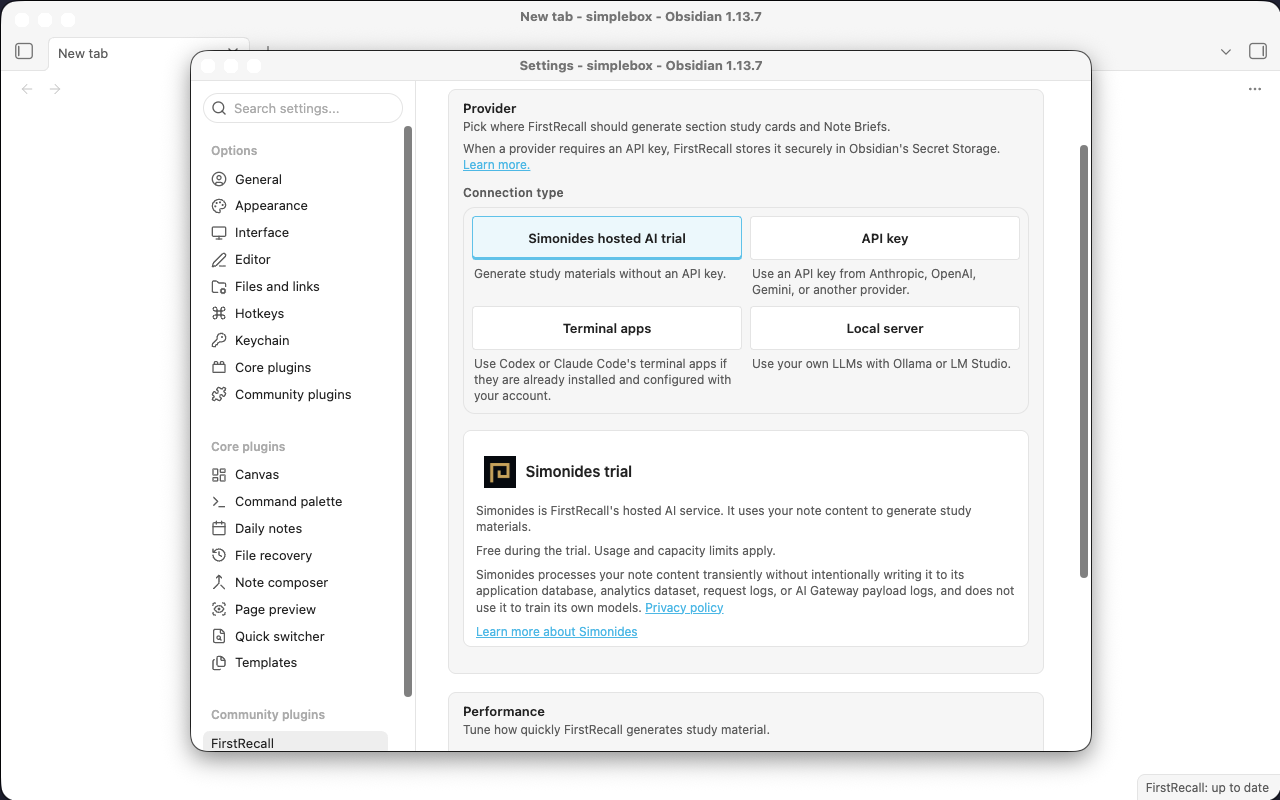
API key
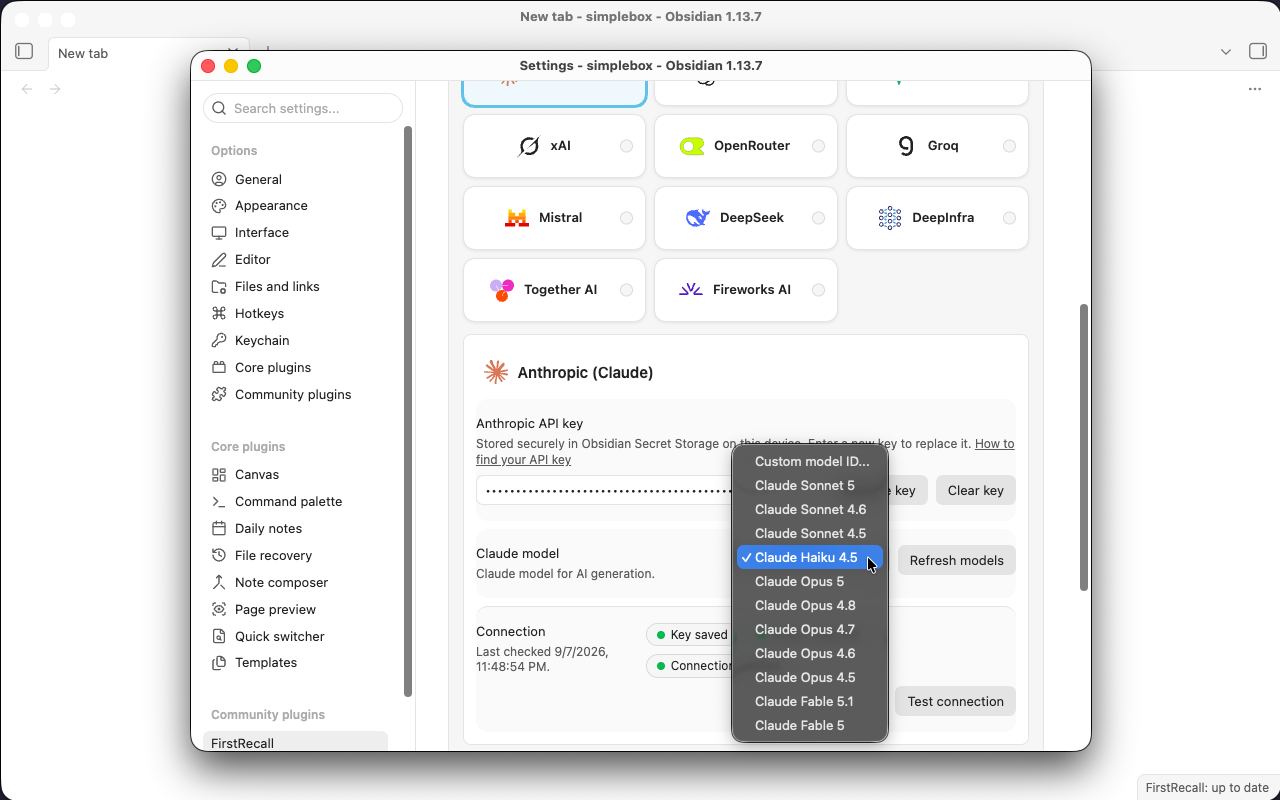
Supported cloud providers are Anthropic, OpenAI, Google (Gemini), xAI, OpenRouter, Groq, Mistral, DeepSeek, DeepInfra, Together AI, and Fireworks AI.
- Choose your provider, enter its API key, and save the key. Keys are saved in Obsidian's Secret Storage and supplied to the provider at runtime.
- Fetch or refresh the available models where offered, then select a model you can access. Anthropic also supports Custom model ID; use the exact provider model identifier.
- Run Test connection. If access fails, check the key, model availability, and your provider account before generating a note.
The key controls let you show or hide a key while typing, save it, and clear the saved key. Clearing a key removes that credential; it does not delete generated study material. Provider API billing and availability are handled by that provider. See the repository's API key setup guide.
View an API provider setup example
Local server
Start your model server and load a model before connecting. Choose Ollama or LM Studio, enter its server URL, fetch the model list where offered, select an installed model, and test the connection.
- Ollama: the default URL is
http://localhost:11434. - LM Studio: the default URL is
http://localhost:1234/v1.
A localhost endpoint can keep model processing on your machine. If you replace it with a remote server, content goes to that server. The URL field alone is not a privacy guarantee.
Terminal apps
Choose Codex CLI or Claude Code CLI when that app is already installed and authenticated on your computer. The command defaults to codex or claude; change the command or executable path if needed. A model is optional: leave it blank to use the terminal app's default, or enter a supported model. Test the connection where offered.
Running a command on your machine does not make generation local. These apps may send the note to their online model service; your account, command configuration, and provider policies determine processing.
Performance settings
| Setting | Default and choices | Effect |
|---|---|---|
| Parallel requests | 5; choose 1–5 | Limits simultaneous requests. Reduce it for a slower local model or a constrained provider. |
| API Rate limit | 30/minute (recommended); 6, 30, 60, or 120/minute | Caps request starts. The default is 5 requests per 10 seconds. This does not increase your provider's quota. |
Actual throughput depends on the provider and generation route. A terminal or whole-note bundle may process material differently from separate section requests.
Your notes and your data
FirstRecall does not insert generated study material into your source Markdown. Cards, the Note Brief, and freshness information are stored separately in the plugin's local data. Displaying, hiding, and studying them leaves the source text intact.
Source preservation is separate from data processing. Generating material passes note text, headings, and relevant context to the selected provider. Cloud APIs, the trial, and online terminal tools process that content remotely. A local server can process it on your machine when the endpoint and model actually run locally.
For the included trial, see what the Simonides hosted trial processes and its privacy policy.
Review your selected provider's privacy, retention, and account settings before submitting private material. Secret Storage protects the way API keys are stored; it does not prevent note content from being sent for generation. Your vault backups and sync configuration also matter for locally stored plugin data.
Automatic updates use the same selected provider after qualifying note edits. Enable them only for the folders you want maintained. A scan alone does not call the AI provider.
The open-source plugin is available under the GNU GPLv3-only license.
Generation settings
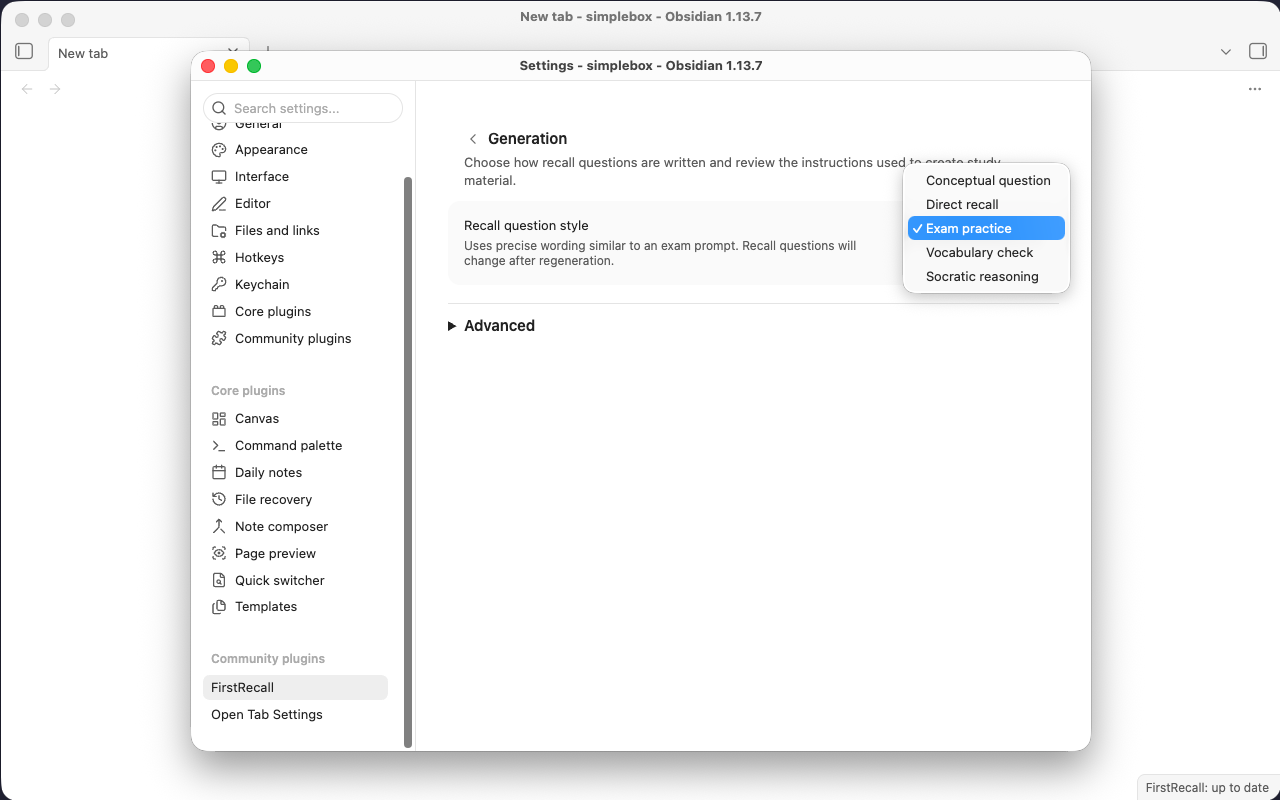
In Settings → FirstRecall → Generation, choose a Recall question style. The default is Exam practice. Changing the style affects future generation; existing cards change after regeneration.
- Conceptual question
- Recall the main idea and a relationship or implication.
- Direct recall
- Retrieve the single most important fact or idea.
- Exam practice
- Practice with precise, exam-like wording.
- Vocabulary check
- Explain a key term's meaning or use in context.
- Socratic reasoning
- Explain why or how the idea works.
View the recall question styles
Expand Advanced to inspect Section study card instructions and Note Brief instructions. These are read-only views of the generation instructions, not custom-prompt editors.
Use Generate study material for this note for the current note. To target a section, use the command-palette action Update a section card and Note Brief…. Provider and model changes apply to subsequent generation; switching providers does not instantly replace existing material.
Generated questions can be incomplete or wrong. Check them against the source before relying on them. Very long notes may exceed the bounded context used for generation; focused, well-explained sections make it easier to check the result.
Display and appearance
These settings affect what you see in Obsidian. They do not require regeneration and do not switch off automatic maintenance.
| Setting | Default | Choices and effect |
|---|---|---|
| Show Note Brief | On | Show or hide the whole-note Note Brief in Editing and Reading. |
| Show summary | On | Show or hide the summary on section study cards. |
| Show recall question | On | Show or hide the question on section study cards. |
| Show key terms | On | Show or hide the terms on section study cards. |
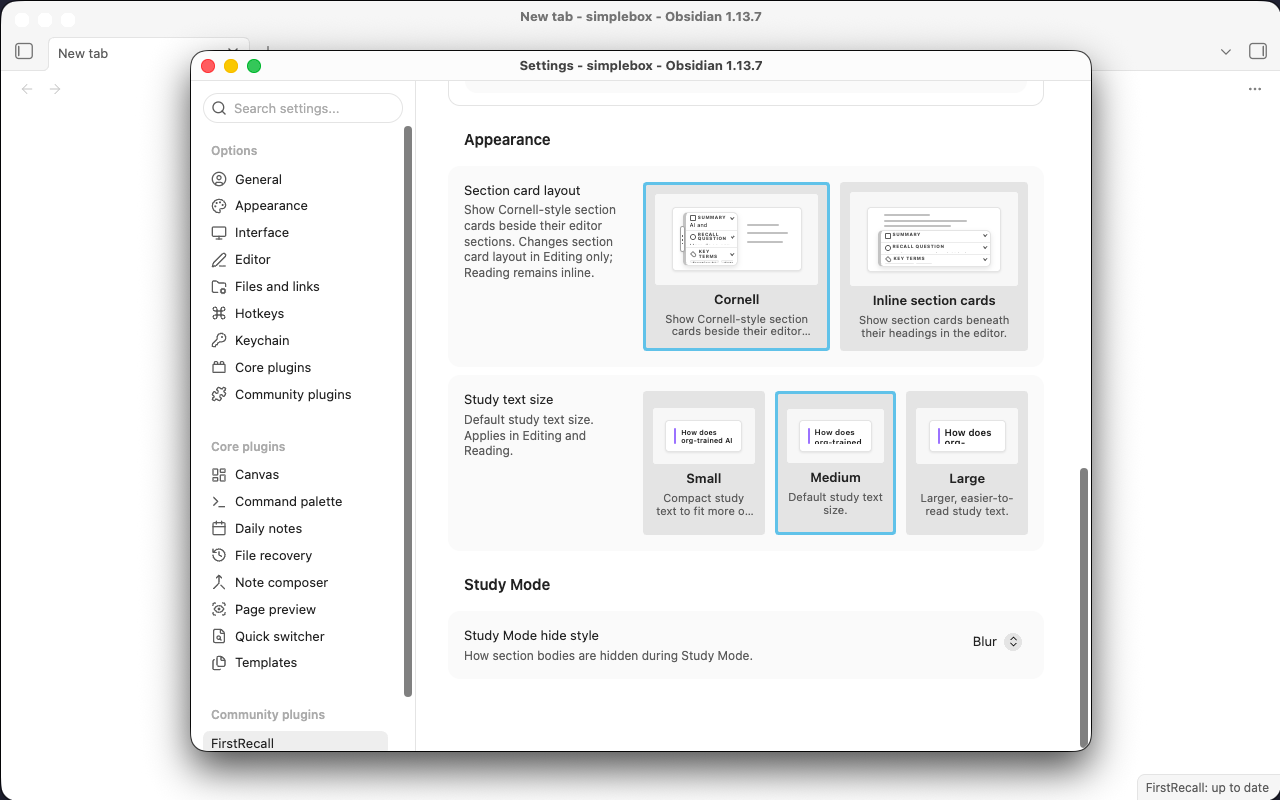
| Section card layout | Cornell | Choose Cornell for cards beside the note, or Inline section cards. This changes Editing only; Reading remains inline. |
| Study text size | Medium | Choose Small, Medium, or Large for study text in both Editing and Reading. |
You can also collapse an individual summary, recall question, or key-terms block on a section card. That changes the view for that note and section without deleting the generated material.
View appearance and Study Mode settings
Cornell or Inline?
FirstRecall's Cornell layout is inspired by the Cornell note-taking method: questions and keywords sit to the left of your notes, giving you prompts to practice recalling the material. In Study Mode, hide the source, try answering from memory, then reveal it to check yourself.
It is a Cornell-inspired layout. Traditional Cornell notes put the summary at the bottom of the page; FirstRecall groups a summary, recall question, and key terms beside each section.
Cornell places a section card beside its source. Inline places it beneath the heading. The examples below show the same note and generated material in Editing view.
Compare Cornell and Inline on the same note
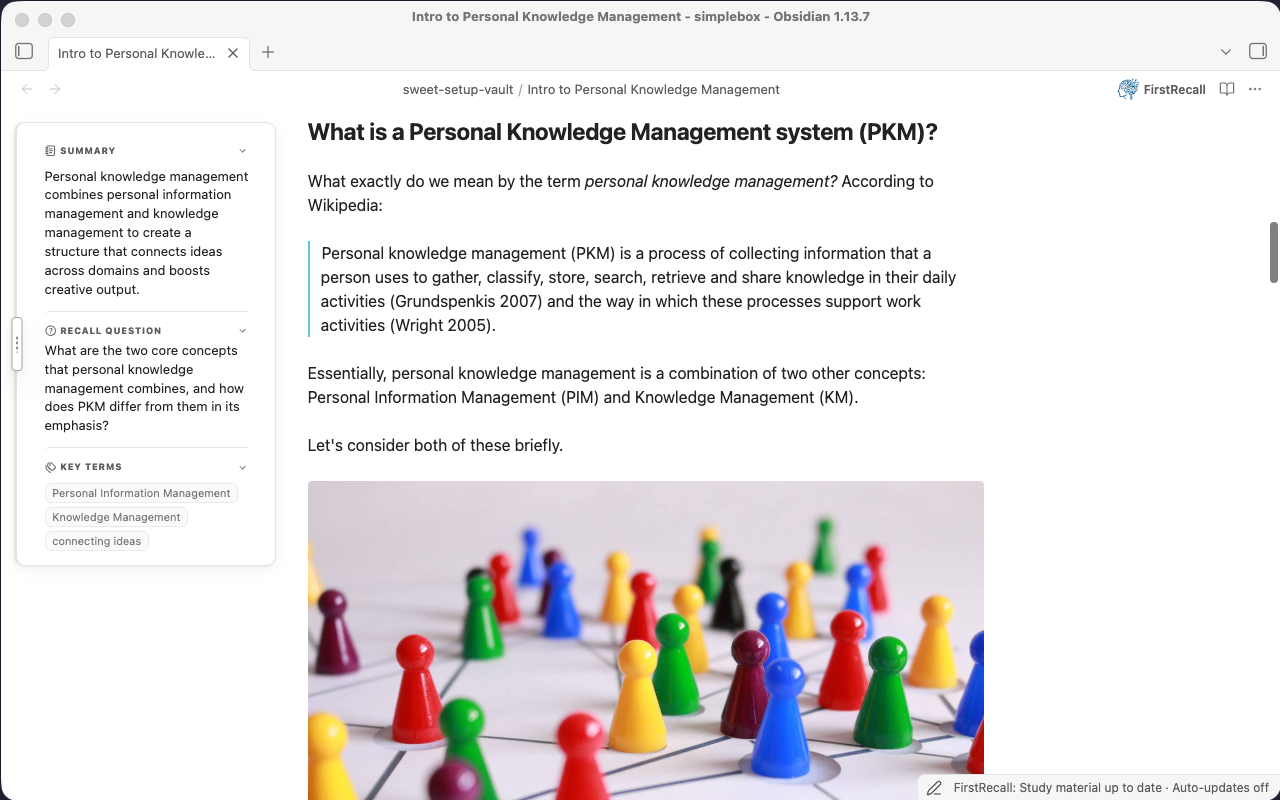
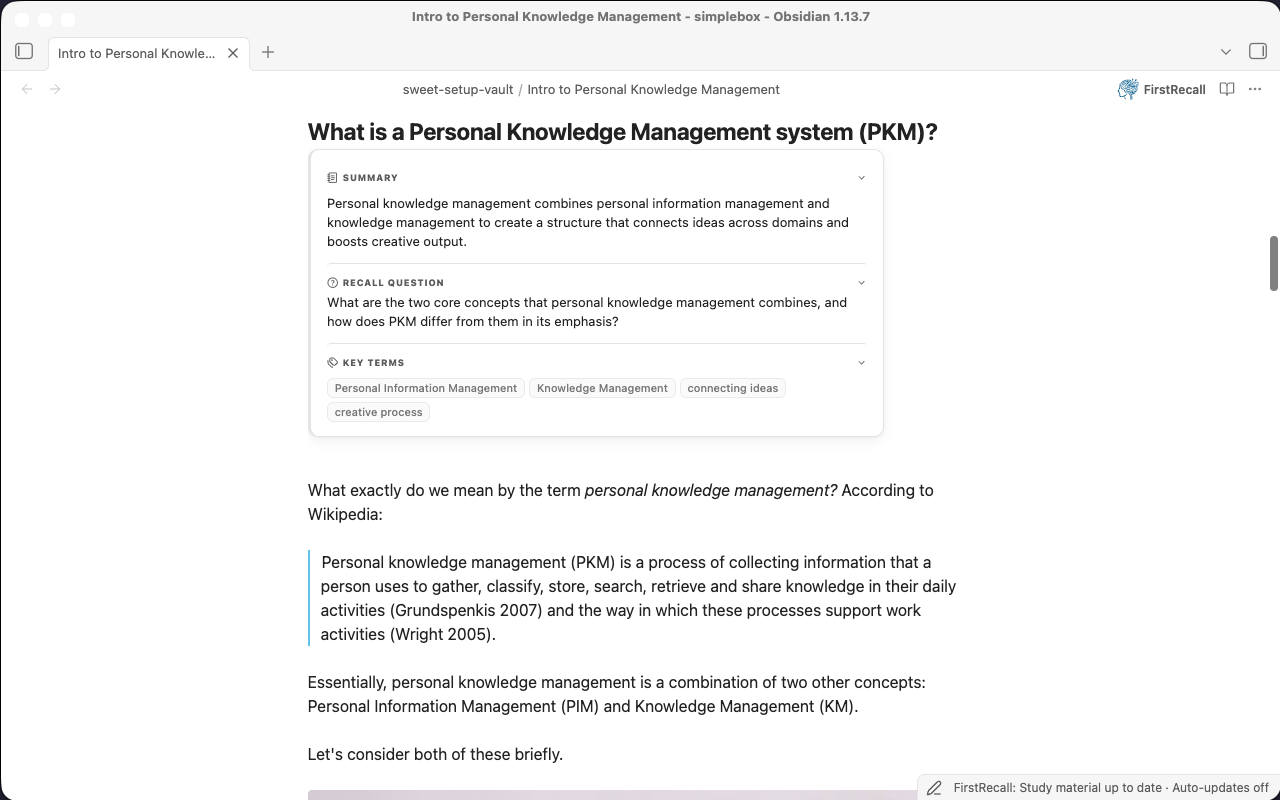
Resize Cornell cards
In Editing view, drag the card's resize grip to change the Cornell width. This is an in-note control, not a Settings slider. Width is saved and bounded between 96 and 512 pixels, with the available viewport further limiting the maximum.
With the grip focused, Left Arrow widens by 8 pixels and Right Arrow narrows by 8 pixels. Home sets the minimum; End sets the available maximum.
Study Mode
Choose Study this note from the note-header menu after generating usable section cards. FirstRecall hides eligible source-section bodies so you can try the recall question before revealing the answer. It works in Editing and Reading. Use the reveal control for a section, then compare your answer with the source.
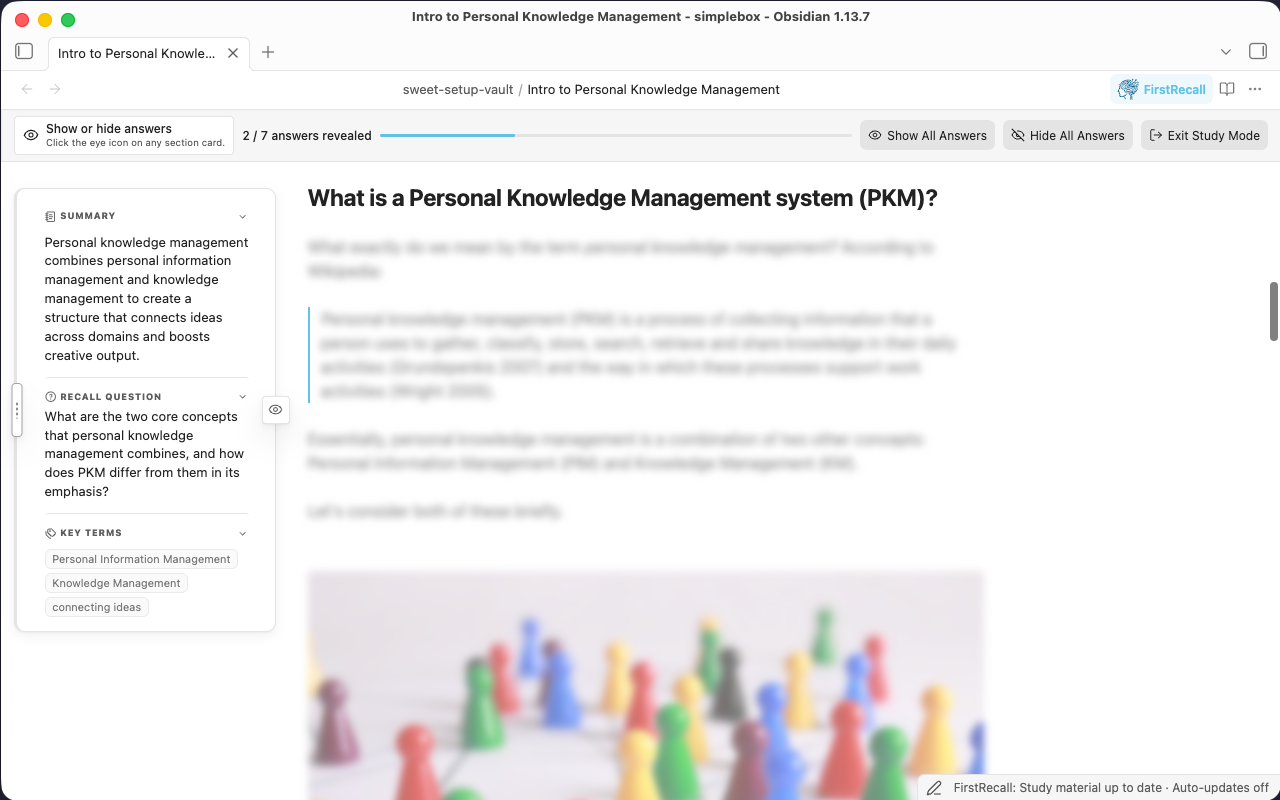
Settings → FirstRecall → Study Mode → Study Mode hide style offers Blur (the default) and Collapse. Blur obscures the body in place; Collapse reduces its visible footprint. These are study aids, not a way to secure confidential text.
Only a fresh card that matches its source can hide a section. When a card is stale, missing, or cannot be matched safely, the source remains visible. Generate updated material before studying that section again. Choose Exit Study to return to the normal note view.
FirstRecall does not schedule spaced repetition or assign due dates. Use its Anki export if you want to build a separate scheduled-review workflow.
Managed folders
Managed folders help you review what needs generation and optionally update material after edits. No folders are managed by default, and newly added coverage starts with automatic updates off.
- Open Settings → FirstRecall → Managed folders and use Add folder or vault to choose an existing folder or Entire vault.
- Review the initial scan. Adding coverage and scanning only inspect notes and existing material; they do not generate material or call your provider.
- Configure an AI provider, then choose Bring study material up to date to explicitly generate or update material in that scope.
- If you want ongoing maintenance, enable Update automatically for that folder. This is an opt-in choice and requires a configured provider.
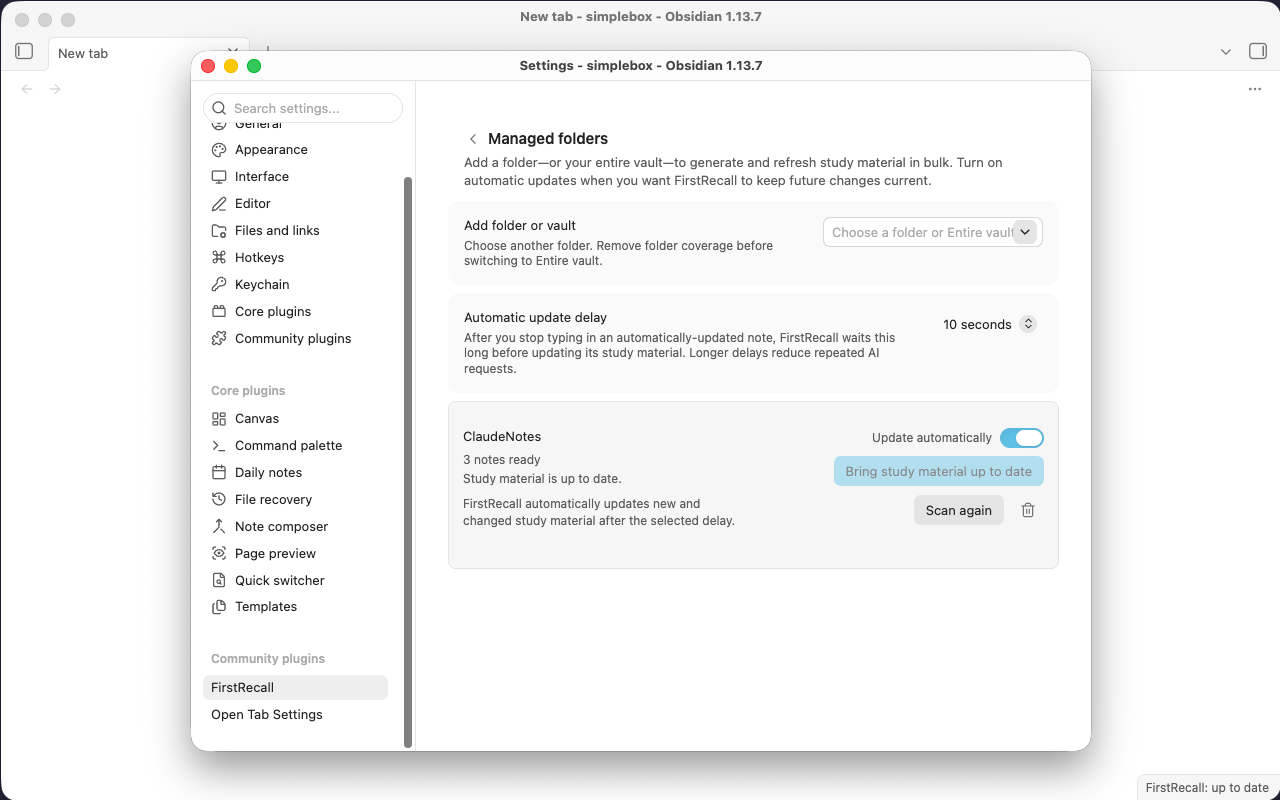
Watch the managed-folder workflow
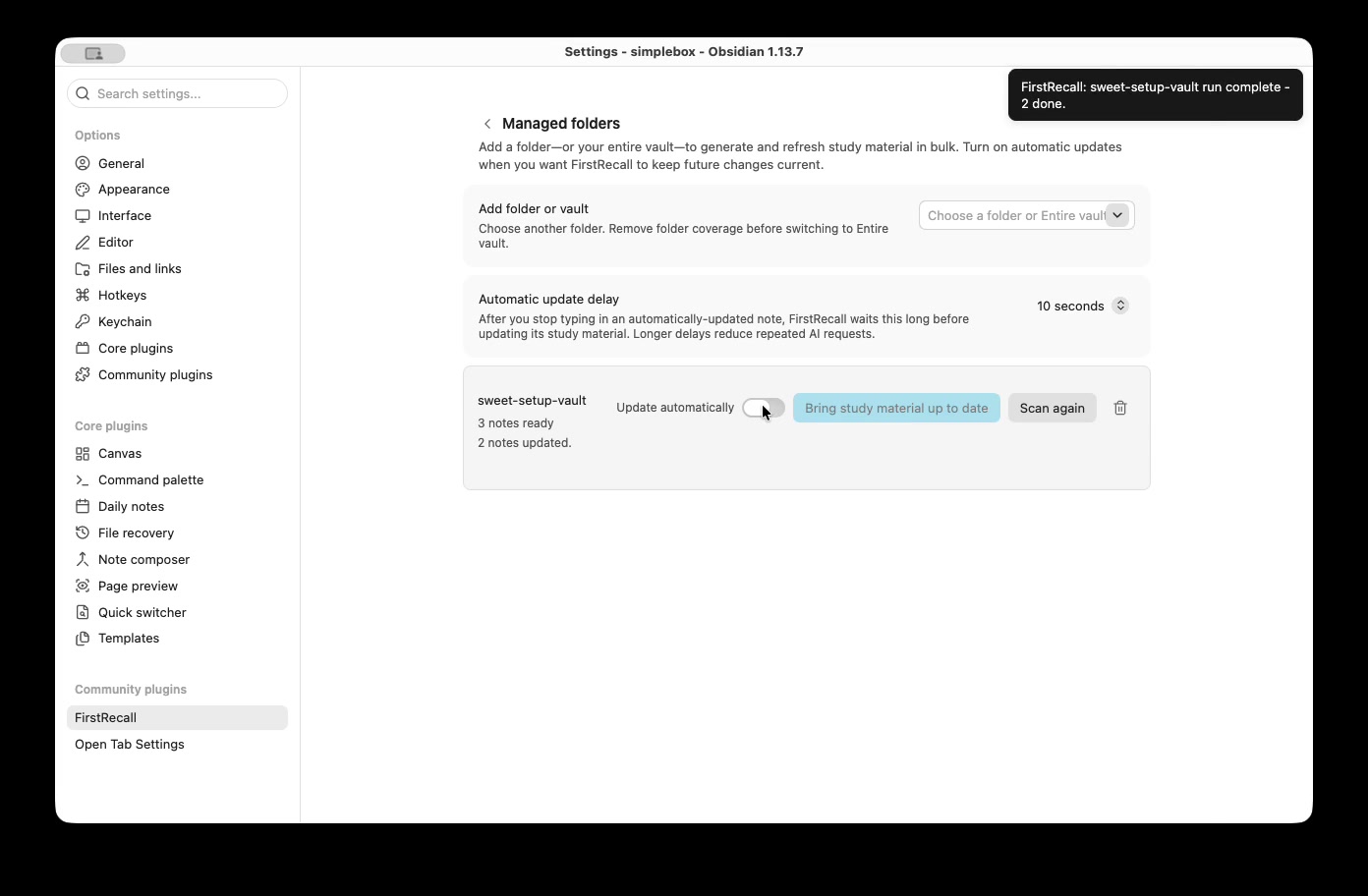
Folder controls
- Scan again refreshes the read-only inventory. Cancel scan stops that scan.
- Bring study material up to date performs the generation work identified by the scan.
- Retry update appears when failed work can be retried. Fix provider issues first; the last successful material is kept when an update fails.
- Update automatically updates new and changed material after you stop typing. Turn it off to pause automatic maintenance.
- Remove stops managing that folder after confirmation. It leaves existing study material available.
Automatic update delay defaults to 10 seconds; choose 1, 5, 10, 25, or 60 seconds. Longer delays reduce repeated generation while editing. Unchanged section cards are preserved during incremental updates, while changed material is refreshed.
Managed scopes cannot overlap. Choose separate folders or the entire vault; remove folder coverage before selecting Entire vault, and remove Entire vault before switching to individual folders.
Folders needing attention lists coverage disabled by a conflict. Its recovery action either removes the named conflicting scope and recovers the folder, or offers Recover managed folder when the conflict is already gone. Read the named scope before recovering: this changes which folders are managed.
Export, hide, or clear material
Export recall questions and key terms
From the FirstRecall note menu or command palette, choose Export Recall Questions and Key Terms to Markdown or Export Recall Questions and Key Terms to Anki (TSV). Generate at least one usable question first; empty or errored sections are skipped.
- Markdown: a study sheet with section headings, recall questions, and key terms.
- Anki TSV: each row has the recall question on the front and the key terms on the back. If terms are absent, the section heading is used on the back. Import it as a Basic front/back note type.
Exports do not include the Note Brief, summaries, or the full source answers. Review and expand the Anki backs yourself if you need complete answers.
Exports are saved beside your source note. If the filename already exists, FirstRecall creates a numbered copy—for example, Interview (recall-questions-and-key-terms) (1).md. Further exports use the next available number, preserving your existing files and edits.
Hide without deleting
The note-header menu can hide generated material for the current note and show it again later. The cached material remains available, and automatic maintenance continues if enabled. The Display settings can also hide individual kinds of material across notes.
Clear generated material
Choose Clear Generated Study Material from the FirstRecall dropdown in the note header or the command palette to remove cached generated material for the current note. It does not erase the source Markdown. You will need to generate again to restore the cards; this is different from hiding them. Pause automatic updates separately if you want maintenance to stop.
Troubleshooting
FirstRecall is missing from Community Plugins
Open the FirstRecall community page and choose Add to Obsidian. Confirm that community plugins are enabled and that you are using Obsidian Desktop 1.11.4 or later, then follow the installation instructions.
No cards appear, or Study is unavailable
Confirm that the note contains explanatory text and that generation completed. Headings are optional. Check the note's visibility action and the Display toggles. Image-only sections need meaningful alt text or written captions. Study needs fresh, usable questions.
The provider will not connect
Check the selected provider, API key or command, endpoint, and model. Refresh models if your account's options changed. For a local server, confirm it is running and has a model loaded. For a terminal app, confirm the configured command works and is authenticated. Retry Test connection before retrying generation.
Generation is slow, rate-limited, or partially fails
Check the provider's capacity and quota, then reduce Parallel requests or the API Rate limit if needed. Trial capacity may be exhausted. Retry failed folder work with Retry update, or regenerate the affected note or section. A failed update keeps the last successful material; it may remain stale until generation succeeds.
My edited note still shows old material
Automatic updates are off unless you enabled them for that note's managed scope. Check folder coverage, Update automatically, the settling delay, and provider readiness. You can also explicitly generate material for the note. A question-style or provider change takes effect when material is generated again.
Report a bug or request a feature
Use GitHub Issues for bugs and feature requests. For a reproducible bug, include your Obsidian version, plugin version, provider type, and steps to reproduce. Remove API keys and private note content from reports.